Livestreaming from Sony cameras without special devices
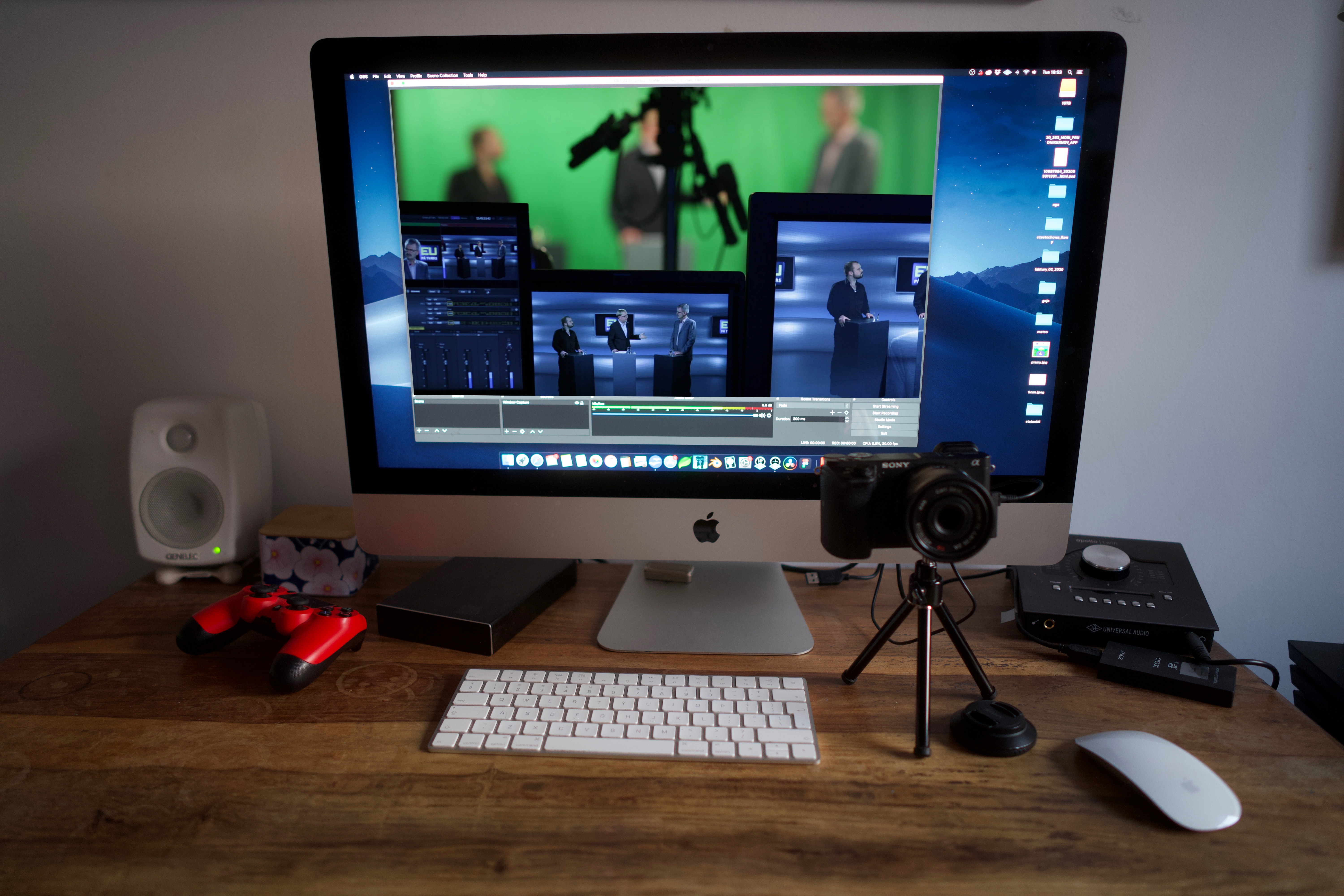
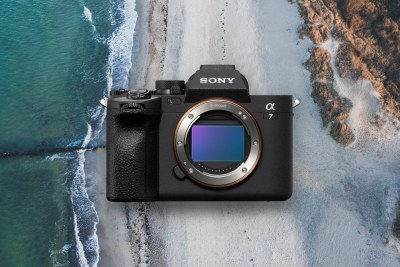
You often ask whether we have devices for capturing video from Sony cameras to a computer for livestreaming on Facebook or YouTube. In this article we will show you how to do it without any additional hardware. All you need is a Sony a6300/a6400/a6500/a6600/a7sii/a7rii/a7riii camera, a USB cable, and a computer.
Step by step:
- Install Sony Remote and OBS software on your computer: SONY REMOTE — https://imagingedge.sony.net/en-gb/ie... OBS — https://obsproject.com/
- In the camera menu, set the USB Connection option to PC Remote (compatible with Sony a6300/a6400/a6500/a6600/a7sii/a7rii/a7riii)
- Connect the camera to the computer with the supplied USB cable and turn on the camera
- Launch the Sony Remote application and double-click your camera in the device list — the camera's live image should then appear in the Remote app
- Leave the Sony Remote window in the foreground and launch OBS
- In OBS, add a Window Capture source (give your camera a name)
- From the Window dropdown, select Remote and click OK. Position the livestream window using the sliders.
You can follow all the steps in the video below, which inspired us to write this article. See you on the Live Stream!
More news